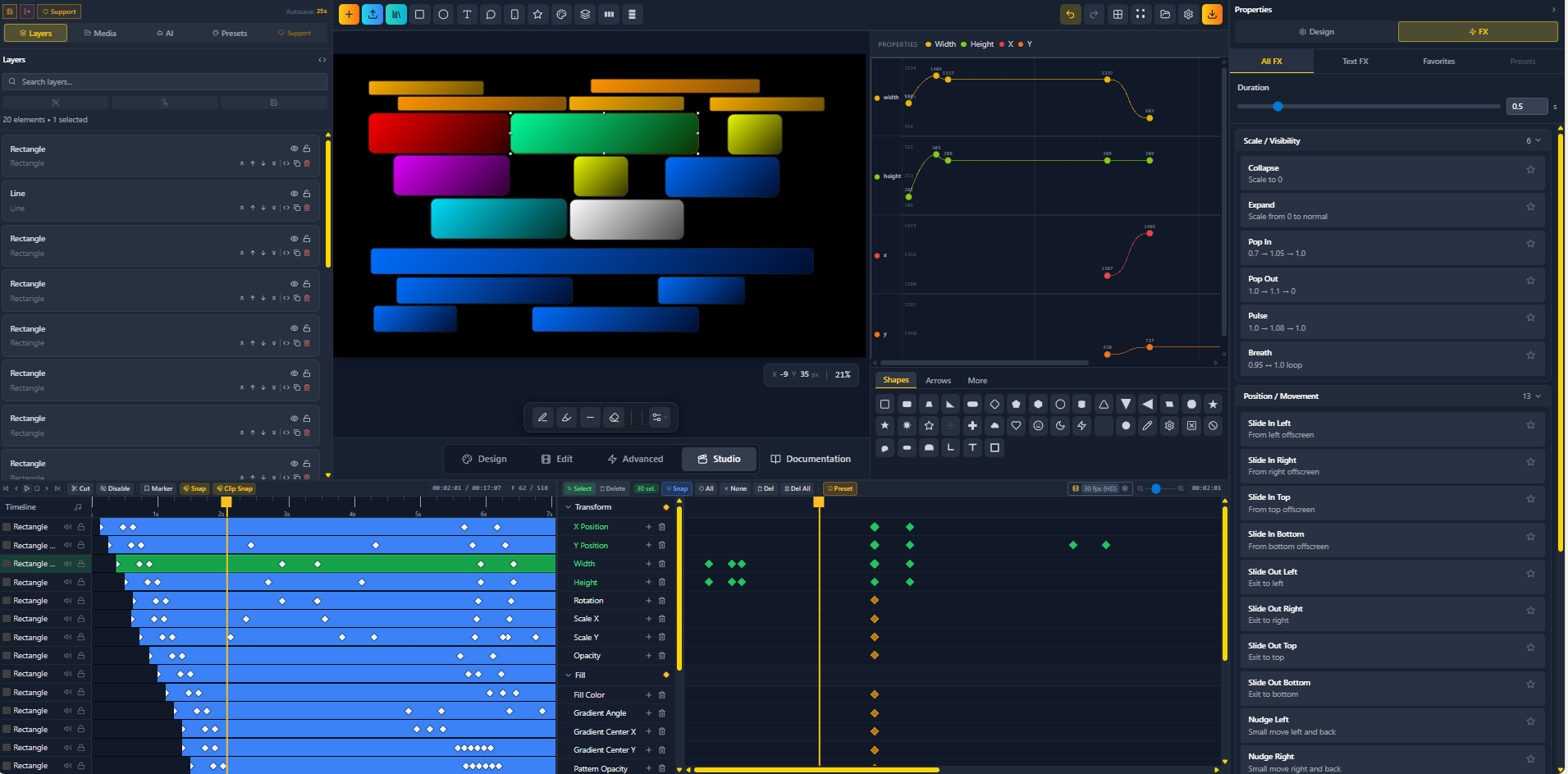
How I Built FlashFX From Zero
FlashFX Export System Documentation
Overview
The FlashFX export system has been completely rewritten to provide a robust, reliable, and optimized design export feature. The new system supports three export modes with real-time progress tracking and comprehensive error handling.
Architecture
Module Structure
The export system is organized into modular components located in /src/export/:
/src/export/
├── ExportManager.ts      # Orchestrates all export operations
├── CanvasExporter.ts     # Handles full canvas exports
├── ShapeExporter.ts      # Handles individual shape exports
├── ZipExporter.ts        # Handles ZIP file creation
└── ExportUI.tsx          # User interface component
Features
1. Export Entire Canvas
- Exports the complete canvas as a single PNG or JPEG image
- Supports custom resolution selection:
- Canvas native resolution
- Full HD (1920×1080)
- 4K (3840×2160)
- 8K (7680×4320)
- Custom width/height
- Uses 2x pixel ratio for high-quality output
- Transparent background for PNG, solid for JPEG
2. Export ZIP for Animation
Most Important Feature
- Exports each visible shape individually as a PNG with transparent background
- Each shape maintains its exact position on the canvas
- When overlaid, shapes recreate the original canvas perfectly
- Naming convention:
[projectName]_shape_00.png,[projectName]_shape_01.png, etc. - Shapes are exported in layer stack order (bottom to top)
- All exports automatically packaged into a ZIP file
- Optimized rendering to prevent memory issues
3. Export Selection
- Exports only selected elements
- Single selection: Downloads as individual PNG
- Multiple selections: Creates ZIP file with all selected shapes
- Same quality and positioning guarantees as ZIP export
User Interface
Toolbar Integration
The export button is located in the toolbar next to the Settings button:
- Icon: Upload icon (box with arrow out)
- Tooltip: “Export Design”
- Same styling as other toolbar buttons
- Keyboard shortcut compatible
Export Modal
When clicked, a modal appears with:
-
Format Selection
- PNG (Transparent) - default
- JPEG
-
Resolution Options
- Canvas resolution
- Preset resolutions (HD, 4K, 8K)
- Custom width/height inputs
-
Export Mode Buttons
- Export Entire Canvas (Blue button)
- Export ZIP for Animation (Yellow/Orange gradient - primary)
- Export Selection (Gray button, disabled if nothing selected)
Progress Tracking
During export, the modal displays:
- Real-time progress indicator
- Current shape being exported (e.g., “Exporting shape 3/25: Rectangle”)
- Progress bar with percentage
- Estimated time remaining
- Non-blocking UI (panels remain usable)
- Canvas interaction is locked during export
Completion States
Success:
- Green checkmark icon
- Success message
- File name displayed
- “Done” button to close
Error:
- Red error icon
- Error message
- Technical error details
- “Retry” button
- “Close” button
Technical Implementation
Canvas Export Process
- Locates canvas DOM element by ID (
canvas-artboard) - Uses
html-to-imagelibrary withtoPngortoJpeg - Applies 2x pixel ratio for quality
- Captures at specified resolution
- Downloads directly to user’s system
Shape Export Process
- Iterates through visible shapes in layer order
- For each shape:
- Creates temporary container with full canvas dimensions
- Clones the DOM element
- Positions clone at exact canvas coordinates
- Renders with transparent background
- Captures as PNG with
html-to-image - Converts to Blob
- Collects all Blobs
- Packages into ZIP using JSZip
- Downloads ZIP file using FileSaver
Performance Optimizations
- Sequential rendering prevents memory overflow
- Efficient blob management
- ZIP compression level 6 for balance of speed and size
- Temporary DOM cleanup after each export
- Progress callback system prevents UI freezing
Error Handling
- Graceful failure for individual shapes
- Detailed error messages
- Memory overflow detection
- Missing element warnings
- Retry capability
Integration Points
UIDesignTool Component
import ExportUI from '../export/ExportUI';

<ExportUI
  isOpen={showExportPanel}
  onClose={() => setShowExportPanel(false)}
  elements={currentState.elements}
  selectedElements={currentState.selectedElements}
  projectName={projectName}
  canvasWidth={3840}
  canvasHeight={2160}
/>
Toolbar Component
{onOpenExport && (
  <button
    onClick={onOpenExport}
    className="p-2 rounded-lg bg-gray-700/50 hover:bg-gray-600/50"
    title="Export Design"
  >
    <Upload className="w-5 h-5" />
  </button>
)}
Usage Guide
For Users
-
Export Entire Canvas:
- Click Export button in toolbar
- Select format and resolution
- Click “Export Entire Canvas”
- File downloads automatically
-
Export for Animation:
- Click Export button
- Select desired resolution
- Click “Export ZIP for Animation”
- Wait for progress to complete
- ZIP file downloads with all shapes
-
Export Selection:
- Select one or more shapes
- Click Export button
- Click “Export Selection”
- Single shape downloads as PNG
- Multiple shapes download as ZIP
For Developers
To modify export behavior:
-
Add new export mode:
- Add to
ExportModetype inExportManager.ts - Implement export function in ExportManager
- Add UI button in
ExportUI.tsx
- Add to
-
Change default settings:
- Modify initial state in
ExportUI.tsx - Update
ExportConfiginterface
- Modify initial state in
-
Add format support:
- Add to format type in ExportConfig
- Implement in CanvasExporter
- Add UI option
Browser Compatibility
- Modern browsers with Canvas API support
- File download API support required
- Blob API support required
- Tested in Chrome, Firefox, Safari, Edge
Known Limitations
- Very large canvases (>8K) may cause memory issues
- Export speed depends on element count and complexity
- Maximum recommended: 100 shapes per export
- Browser file size limits apply
Future Enhancements
Potential improvements:
- SVG export support
- PDF export
- Video export integration
- Batch project export
- Cloud export destinations
- Export presets
- Background export (web workers)
Dependencies
html-to-image- Canvas to image conversionjszip- ZIP file creationfile-saver- File download handling- React - UI framework
- Lucide React - Icons
Troubleshooting
Export fails immediately
- Check console for errors
- Verify elements have valid DOM nodes
- Ensure canvas element exists
Memory errors
- Reduce canvas resolution
- Export fewer shapes at once
- Close other browser tabs
Shapes positioned incorrectly
- Verify element x/y coordinates
- Check for transform issues
- Ensure parent containers are correct
ZIP file corrupt
- Check available disk space
- Verify all blobs created successfully
- Try smaller batch size
Support
For issues or questions:
- Check console logs for detailed errors
- Verify all dependencies installed
- Test with simple shapes first
- Review export progress messages